However, Lenovo Yoga 7i laptops just make it so hard to do a USB boot and clean install.
Historical context: This account concerns Windows 10 installation. Windows 10 version 22H2 reached end of support on October 14, 2025; ESU-enrolled devices and LTSC editions have separate servicing arrangements. Operating-system support status is separate from whether a storage-driver package supports your exact Yoga model.
Here are the issues I ran into (with fixes):
Before you begin: Back up important files on the laptop and the USB drive. Creating installation media erases the USB; formatting a partition or performing a clean installation can erase files, apps, and settings on the target drive. Check the selected disk carefully and follow Microsoft’s clean-install guidance only if you intend to erase it.
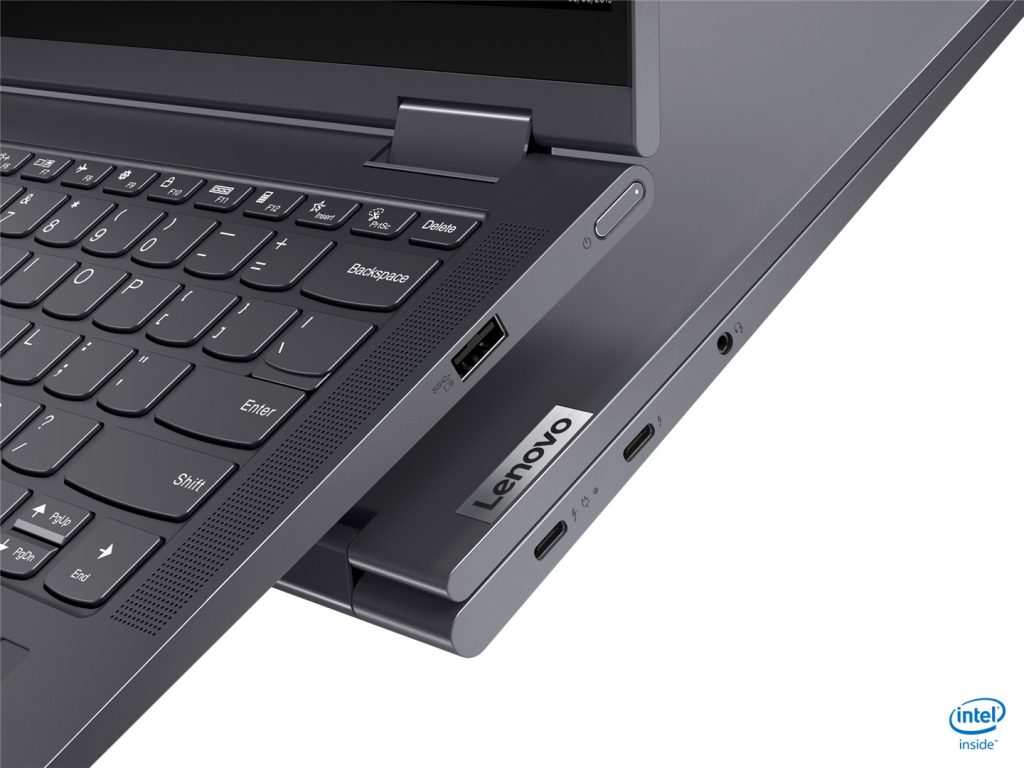
1) USB drive with windows setup won’t boot: Microsoft’s Media Creation Tool is a straightforward way to create a bootable Windows USB, but it is not the only method: Microsoft also documents manual creation from an ISO. Use the boot-menu instructions for your exact Yoga model. I tried using the DISM tool via PowerShell to format my USB into a bootable one. But it didn’t work.
2) Windows setup won’t recognize any (NVMe) storage devices: If the storage controller requires a driver that is missing from Windows Setup, load the driver supplied by Lenovo for your exact machine type and Windows version. On a separate computer, find the model at Lenovo PC Support and check Drivers & Software for its storage-controller driver. For example, Lenovo lists an Intel RST package for Yoga 7-14ITL5 and Yoga 7-15ITL5 running Windows 10 (64-bit); that package is not a recommendation for every Yoga 7i. Follow the matching package’s extraction instructions, copy the extracted driver folder to the USB, and note the location of its .inf files. At the disk-selection screen, choose “Load driver” and browse to the matching folder. This can make the drive visible when a missing controller driver is the cause. If no compatible driver or drive appears, stop and check the model-specific Lenovo instructions instead of selecting an unrelated driver. Once the disk appears, confirm the correct target and your backup before proceeding; do not format it merely to troubleshoot detection.
Thanks to Sahil_007.